Python Installation Guide
This comprehensive guide will walk you through installing Python on Windows, macOS, and Linux systems. Follow the instructions for your operating system to get Python up and running.
Before You Begin
- Check if Python is already installed by opening a terminal/command prompt and typing
python --version - Determine whether you need 32-bit or 64-bit Python (most modern systems use 64-bit)
- Administrator/sudo privileges may be required for some installation methods

Windows Installation
Installing Python on Windows is straightforward using the official installer from python.org.
- Visit the official Python website: https://www.python.org/downloads/windows/
- Under "Stable Releases," select the latest Python 3.x version
- Choose either the 32-bit (x86) or 64-bit (x86-64) installer based on your system

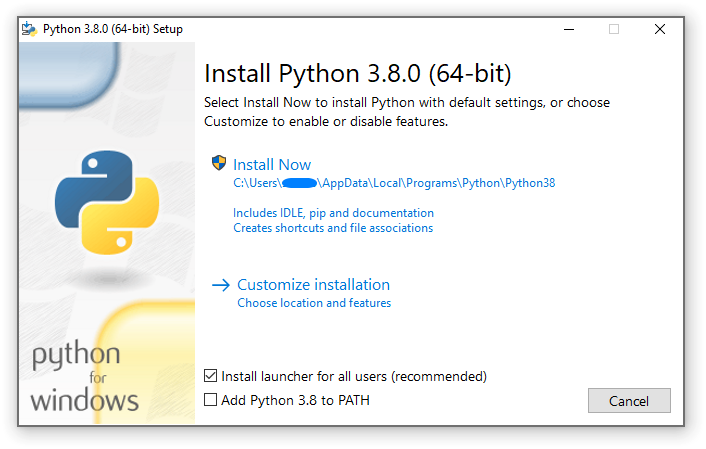
- Double-click the downloaded .exe file
- Check the box "Add Python to PATH" at the bottom
- Click "Install Now" (recommended for most users)
- Wait for the installation to complete
- Open Command Prompt (Win+R, type
cmd, press Enter) - Type
python --versionand press Enter - You should see the installed Python version
C:\Users\YourName> python --version
Python 3.9.7
Alternative: Microsoft Store
Windows 10/11 users can also install Python from the Microsoft Store:
- Open Microsoft Store
- Search for "Python"
- Select the latest Python 3.x version
- Click "Get" to install

macOS Installation
There are several ways to install Python on macOS. Choose the method that best suits your needs.
Method 1: Official Installer
- Visit the official Python website: https://www.python.org/downloads/macos/
- Download the latest macOS 64-bit installer
- Open the downloaded .pkg file
- Follow the installation wizard
- When complete, Python will be installed in /Applications

Method 2: Homebrew (Recommended for Developers)
- Open Terminal (Applications > Utilities > Terminal)
- Run the Homebrew installation command:
/bin/bash -c "$(curl -fsSL https://raw.githubusercontent.com/Homebrew/install/HEAD/install.sh)"
Follow the on-screen instructions to complete the installation.
brew install python
This will install the latest Python version and pip (Python package manager).
Verification on macOS
To verify your Python installation:
python3 --version
pip3 --version
Note: macOS comes with Python 2.7 pre-installed. Always use python3 and pip3 to ensure you're using Python 3.

Linux Installation
Most Linux distributions come with Python pre-installed, but you may need to install a specific version.
Debian/Ubuntu (APT)
sudo apt update
sudo apt install python3 python3-pip python3-venv
Fedora (DNF)
sudo dnf install python3 python3-pip
Arch Linux (Pacman)
sudo pacman -S python python-pip
Installing Specific Versions
To install a specific Python version (e.g., Python 3.8):
# Ubuntu/Debian
sudo apt install python3.8

# Fedora
sudo dnf install python3.8

# Arch Linux (via AUR)
yay -S python38
Compiling from Source
For complete control over the installation:
# Ubuntu/Debian
sudo apt install build-essential zlib1g-dev libncurses5-dev libgdbm-dev libnss3-dev libssl-dev libreadline-dev libffi-dev

# Fedora
sudo dnf install gcc openssl-devel bzip2-devel libffi-devel zlib-devel
wget https://www.python.org/ftp/python/3.9.7/Python-3.9.7.tgz
tar -xf Python-3.9.7.tgz
cd Python-3.9.7
./configure --enable-optimizations
make -j 8
sudo make altinstall
Replace "3.9.7" with your desired version. Use make altinstall to avoid overwriting the system Python.
Verifying Your Installation
After installation, verify that Python is working correctly on your system.
# Windows Command Prompt
python --version

# macOS/Linux Terminal
python3 --version
# Windows
python

# macOS/Linux
python3
You should see the Python REPL with version information and the >>> prompt.
Create a file called hello.py with the following content:
print("Hello, Python!")
Run it with:
# Windows
python hello.py

# macOS/Linux
python3 hello.py
Troubleshooting Common Issues
"Python is not recognized" (Windows)
If you get this error, Python is not in your PATH:
- Reinstall Python and check "Add Python to PATH"
- Or manually add Python to PATH:
- Search for "Environment Variables"
- Click "Environment Variables"
- Under "System variables", find "Path" and click "Edit"
- Add Python's installation directory (e.g.,
C:\Python39) - Add the Scripts directory (e.g.,
C:\Python39\Scripts)
Multiple Python Versions
To manage multiple Python versions:
- Windows: Use the Python Launcher (
pycommand)py -3.8 # Runs Python 3.8 py -3.9 # Runs Python 3.9
- macOS/Linux: Use
update-alternativesor virtual environments
Permission Denied Errors (Linux/macOS)
If you get permission errors when installing packages:
# Avoid using sudo with pip
pip install --user package_name

# Or better, use virtual environments
python3 -m venv myenv
source myenv/bin/activate  # Linux/macOS
pip install package_name
Next Steps After Installation
Install Essential Tools
# Install pip (if not already installed)
python -m ensurepip --upgrade

# Upgrade pip
python -m pip install --upgrade pip

# Install virtualenv
pip install virtualenv
Recommended Packages
# Data science stack
pip install numpy pandas matplotlib jupyter

# Web development
pip install flask django

# Code formatting and linting
pip install black flake8
Learning Resources
- Official Python Tutorial: https://docs.python.org/3/tutorial/
- Python for Beginners: https://www.python.org/about/gettingstarted/
- Real Python Tutorials: https://realpython.com/